> For the complete documentation index, see [llms.txt](https://supportx.gitbook.io/buku-mantra-and-sihir/llms.txt). Markdown versions of documentation pages are available by appending `.md` to page URLs; this page is available as [Markdown](https://supportx.gitbook.io/buku-mantra-and-sihir/ake/mpgs/buat-map-mpgs-dengan-deep-zoom-composer.md).
# Buat Map MPGS dengan Deep Zoom Composer
Silahkan instal Deep Zoom Composer, download [di sini](https://drive.google.com/file/d/1FnjeFCDw48-PazkEq_INNHlQtbAiuwSG/view?usp=drive_link)
Buka software Deep Zoom Composer, klik **New Project**.
Beri nama project anda dan folder untuk menyimpan project anda, lalu klik **OK.**
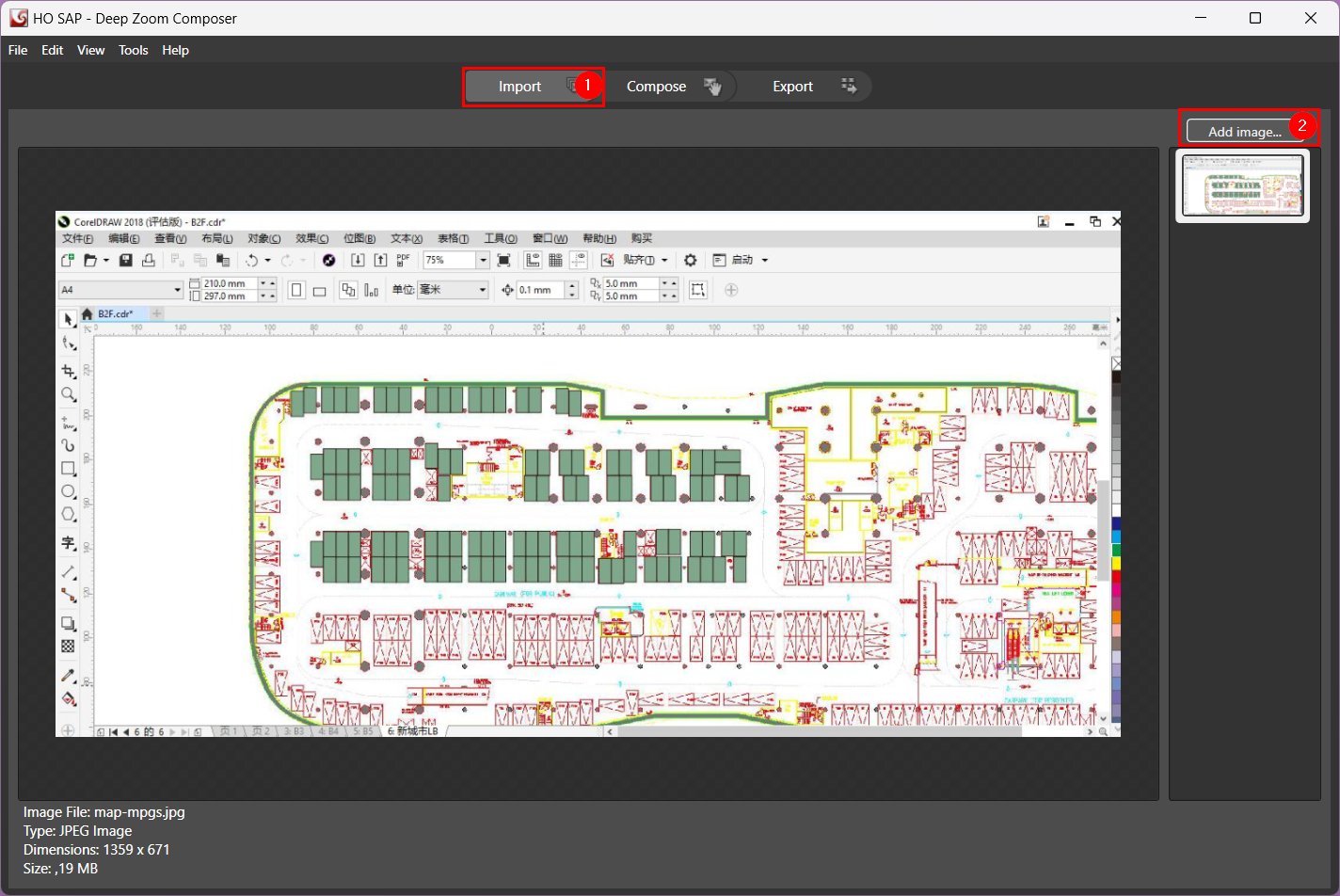
Klik tab **Import** dan **Add image.** pilih gambar bagus dan HD untuk dasar Map. (Sebaiknya ukuran HD JPG 3-4MB)
Klik Tab **Export**, beri nama file anda jika layernya b1, maka masukan “b1”. Harap hanya menggunakan huruf kecil dan angka dalam alphabet dan tidak menggunakan simbol apa pun. Klik **Export** akan muncul window baru dan klik **View Image Folder**.
Selanjutnya akan terbuka folder dimana output project anda, buka folder **dzc\_output\_images**
Kompres “b1\_files” dan “b1.xml” kedua file ini menjadi satu paket terkompresi zip.
->
{% hint style="warning" %}
Please notice that the JPG file before import, naming of the file during export and the final zip file name should be exactly the same. (Here for example all using b1) And cut the b1.zip file to the desktop and this b1.zip will be the file which can be imported into the MPGS as base map directly.
This is the final output JPG file before importing to the Deep Zoom Composer.
{% endhint %}




 {% hint style="warning" %}
Please notice that the JPG file before import, naming of the file during export and the final zip file name should be exactly the same. (Here for example all using b1) And cut the b1.zip file to the desktop and this b1.zip will be the file which can be imported into the MPGS as base map directly.
This is the final output JPG file before importing to the Deep Zoom Composer.
{% endhint %}
{% hint style="warning" %}
Please notice that the JPG file before import, naming of the file during export and the final zip file name should be exactly the same. (Here for example all using b1) And cut the b1.zip file to the desktop and this b1.zip will be the file which can be imported into the MPGS as base map directly.
This is the final output JPG file before importing to the Deep Zoom Composer.
{% endhint %}